Table of Contents
Power BI Dashboard Design Tips - Create Clearer Business Reporting
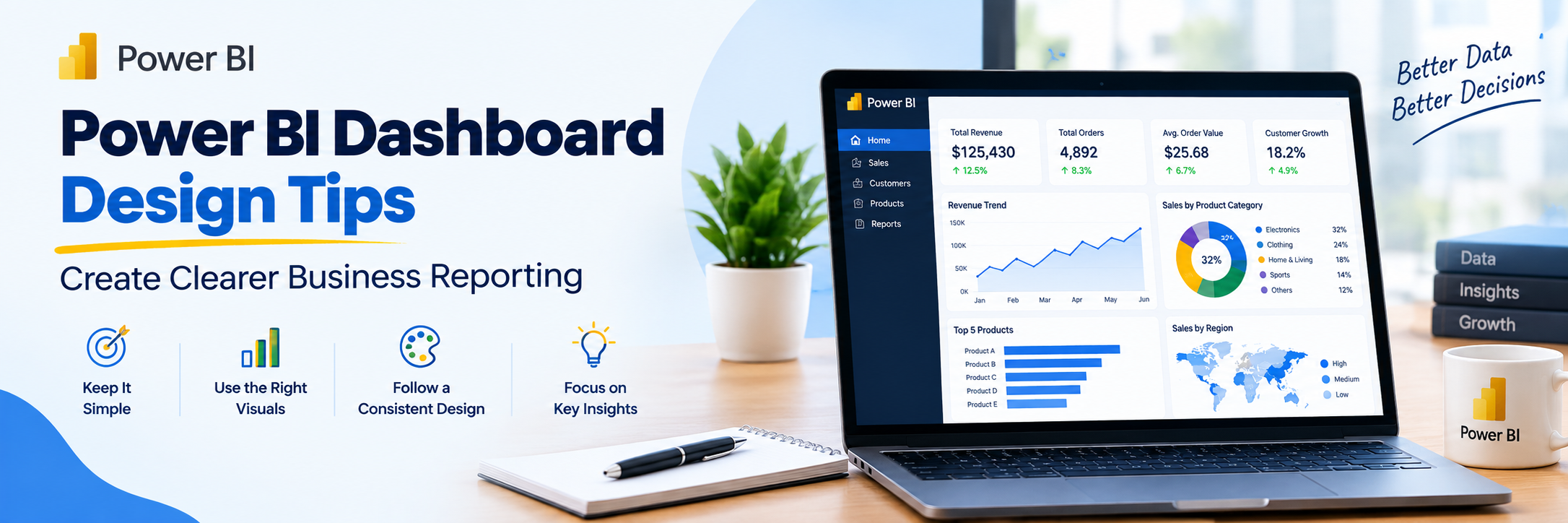
Business reports often fail because they ask too much of the reader. The numbers may be correct, but the presentation makes them harder to understand.Good dashboard design gives people a clear starting point. It also keeps supporting detail available without letting that detail take over the page.
A useful dashboard should answer common business questions without forcing people to study every chart. That goal should shape the layout, visuals, labels, and interactions from the start.
How to Design a Power BI Dashboard Around the Reader
A Power BI Dashboard should reflect the questions its audience asks during normal work. Microsoft describes dashboards as single-page views built around the highlights people need to monitor.
Start With the Decisions People Need to Make
Executives, sales teams, and finance teams rarely need the same view of business performance. Each group watches different signals before making decisions. Those needs should decide which metrics receive space on the page.
Put the Main Numbers Where People Look First
Most readers scan the upper part of a dashboard before moving into detailed charts. A 2025 eye-tracking study found dashboard objects and layouts affected viewing behavior across 60 participants. Placement should reflect the order in which people need information.
Match the Detail to the Audience
Senior leaders often need a quick status view, while analysts spend more time investigating changes. The main page can show the situation without holding every supporting detail. Related report pages can contain deeper analysis for users who need it.
Build a Clear Visual Hierarchy
Visual hierarchy tells readers what deserves attention before they start reading every label. Size, position, spacing, and contrast can establish that order.
Large KPI cards can sit above supporting charts when those numbers matter most. Related visuals can share one area, while separate topics can have more space between them.
Too many boxes, borders, and background shapes can weaken that hierarchy. The page becomes easier to scan when visual weight reflects business importance.
A consistent reading order also makes recurring reports feel familiar. Users spend less time finding information because they already know where each type of metric appears.
Repeated layouts work especially well across related department reports. Sales, finance, and operations pages can share a structure while showing different measures.
Spacing plays a practical role in this structure. Related items feel connected when they sit together, while extra space can separate different reporting questions.
Choose Charts That Fit the Business Question
The chart should make the comparison easy without asking the reader to decode the visual. Different business questions need different forms of presentation.
Use Bar and Column Charts for Direct Comparisons
Bar and column charts work well when people need to compare categories. Product lines, regions, teams, and customer groups fit this type of view. Clear sorting can bring the highest or lowest values into view quickly.
Use Line Charts for Changes Over Time
Line charts fit metrics that move across days, weeks, months, or years. Revenue, traffic, costs, and customer activity often become clearer across a consistent period. Sudden jumps or declines are also easier to spot.
Use Cards and Tables for Specific Jobs
Cards suit headline numbers that users need to check quickly. Tables work better when exact values matter more than visual comparison. Both formats lose value when they occupy more space than the business question deserves.
Keep Color and Formatting Purposeful
Color should help readers separate information or notice a change. A dashboard becomes harder to scan when every chart uses several strong colors.
- Use one accent color for the metric or category that deserves the most attention.
- Keep the same category colors consistent across related charts and report pages.
- Reserve red for negative status only when that meaning fits the business context.
- Use neutral shades for background data that does not need immediate attention.
- Keep chart titles short and specific enough to explain the comparison.
- Use consistent number formats for currency, percentages, thousands, and millions.
- Remove borders and labels that do not add useful information.
- Keep font sizes consistent across similar titles, cards, labels, and values.
Make Filters and Interactions Easy to Follow
Interactive reporting can reduce clutter because users can move from summary data into more specific views. Those interactions still need to feel predictable during normal use.
Keep Common Filters Easy to Find
Most teams return to a small set of filters during regular reporting. Date, region, department, product, and customer segment are common examples. Frequently used choices deserve a clear position near the reporting area.
Avoid Interactions That Change Too Much at Once
Selecting one visual can affect other visuals on a Power BI report page. Problems start when a single click changes several unrelated charts. Users may then lose track of the selection that caused the new numbers.
Keep Deeper Detail Behind Clear Actions
Tooltips, drillthrough pages, and linked reports can hold information outside the main view. A regional sales chart might lead into account or product performance. Clear labels should show users what they will open next.
Design for Performance and Different Screens
Dashboard speed affects how people experience the reporting process. A clean page can still feel frustrating when several heavy visuals take too long to respond.
Reducing unnecessary visuals can lower the work required during page loading. Simpler pages also make slow charts or calculations easier to identify during testing.
Performance should be checked with the same filters and data volumes used in normal work. A page that feels fast with sample data may behave differently after deployment.
Screen size creates another design problem. A layout that feels balanced on a large monitor may become crowded on a smaller laptop or phone.
Mobile reporting usually needs stronger priority because less space is available. Headline KPIs can appear first, followed by the charts people check most often.
Small screens also make wide tables and dense labels harder to read. A separate mobile layout can present the same reporting questions in a more suitable order.
A final review should cover both speed and readability. Users may open the same report from desks, meeting rooms, tablets, or phones.
Testing those common situations can reveal issues that are not obvious during development. It can also show which visuals deserve more or less space.
Let Power BI Usage Shape Later Design Changes
Power BI Usage can show how people interact with published reporting after launch. A 2025 review found user-centered design in 32% of 89 dashboard cases and decision-centered design in 15%.
- Check which reports and pages receive regular attention from business users.
- Compare frequently viewed content with pages that receive little activity.
- Look for reporting pages that users return to during recurring meetings.
- Review feedback when users repeatedly ask where a metric or filter sits.
- Remove or relocate visuals that receive little attention and add little reporting value.
- Reconsider layouts when users repeatedly leave one page to find related information.
- Review usage after major design changes instead of judging them only at launch.
- Combine usage patterns with direct user feedback before changing established reporting flows.
Conclusion
Clear Power BI reporting starts with choices about what people need to notice first. Layout, chart selection, color, and interaction should support those choices. Extra detail can remain available without taking over the main page.A strong dashboard also changes as reporting habits become clearer. Usage patterns and user feedback can expose sections that no longer serve their purpose. Small design changes can then make everyday reporting easier to read.
Frequently Asked Questions
How many visuals should a Power BI dashboard have?
There is no fixed number that works for every dashboard. The page needs enough visuals to answer its main reporting questions. Extra visuals belong elsewhere when they distract from those questions.
What makes a Power BI dashboard easy to read?
A readable dashboard has a clear starting point and a simple visual order. Related metrics sit together, while major KPIs receive more space. Consistent labels, colors, and number formats also reduce confusion.
Should every KPI appear on the main dashboard?
Most dashboards do not need every available KPI on the first screen. The main page should focus on measures tied to frequent decisions. Secondary metrics can sit inside supporting report pages.

 +91 774-202-1725
 +1 (945) 3387904
 business@coherentlab.com
 +49 15223341304
 UK
UK