Table of Contents
How to Connect ChatGPT to Video Editing Software Using MCP
Artificial intelligence is changing how people create, edit, and manage video content. What once required hours of manual editing can now be handled with simple instructions. From arranging clips to adjusting sound and adding subtitles, AI is making video production easier for creators and businesses.
ChatGPT is already widely used for writing scripts, planning content, and generating creative ideas. However, its role in video production is becoming more practical with the introduction of the Model Context Protocol (MCP).
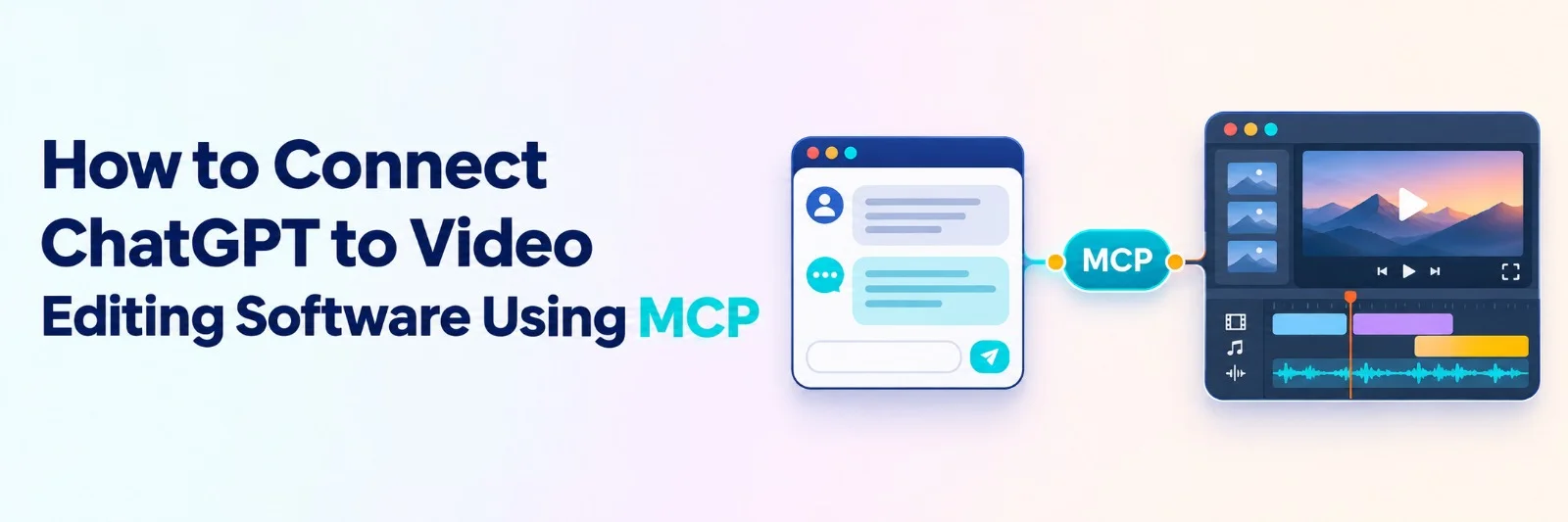
MCP allows ChatGPT to connect with compatible software and perform tasks directly within those applications. Instead of asking ChatGPT how to edit a video and then completing every step manually, users can connect it to video editing software and ask it to make the changes.
This guide explains how MCP works, how to connect ChatGPT to compatible video editing software, and how this setup can improve everyday video production.
What Is MCP in Video Editing?
Model Context Protocol, commonly called MCP, is an open standard that allows AI assistants to communicate with external tools and applications.
In traditional workflows, ChatGPT can suggest editing steps, explain techniques, or prepare scripts. However, it cannot directly control an editing timeline without access to compatible tools.
MCP helps bridge this gap.
A MCP video editing server acts as a connection between ChatGPT and video editing software. It gives the AI assistant access to specific editing functions, depending on what the software supports.
With a suitable connection, ChatGPT can perform tasks such as:
- Reviewing uploaded video footage and selecting useful clips.
- Trimming unwanted sections and arranging clips.
- Adding subtitles, titles, and transitions.
- Adjusting background music and audio levels.
- Making changes to the video timeline.
- Preparing different video formats for social media.
The available features depend on the connected editor and the permissions provided to ChatGPT.
This approach allows users to communicate their editing requirements through normal conversations while the editing software handles the actual changes.
How Does ChatGPT Work With Video Editing Software?
Connecting ChatGPT to video editing software creates a workflow in which the AI assistant understands instructions and sends suitable actions to the connected application.
The process involves three main components.
1. ChatGPT as the AI assistant
ChatGPT receives instructions from the user and determines which editing tasks need to be performed.
For instance, a creator might ask it to remove repeated explanations from a recorded tutorial and arrange the remaining footage into a clear sequence.
2. MCP server as the connection
The MCP server makes supported editing tools available to ChatGPT.
When the assistant receives a request, it can call the appropriate tool through this connection. The server then helps the editing application carry out the requested action.
3. Video editing software as the workspace
The actual editing happens inside the video editing application.
Depending on the software, users may be able to review timeline changes, adjust individual clips, refine effects, and export the finished video.
This setup is especially useful for teams that want to automate repetitive editing steps without giving up control over the final content.
Why Connect ChatGPT to a Video Editor?
Video editing includes both creative decisions and routine tasks. While deciding how a story should flow requires human judgment, many editing operations can take considerable time.
Connecting ChatGPT to editing software can help reduce this workload.
Faster video preparation
Reviewing raw footage, identifying useful takes, and removing unnecessary pauses are often the first steps in video production.
With a compatible AI editing connection, these tasks can be assigned through written instructions. Editors can then spend more time refining the footage instead of manually reviewing every recording.
Easier editing for beginners
Professional editing software can feel complicated to someone unfamiliar with timelines, audio tracks, and editing controls.
Natural-language instructions offer another way to approach these tasks. Beginners can describe the results they want without having to learn every editing function immediately.
Better content repurposing
Businesses often need several versions of the same video for different platforms.
A longer product demonstration might need shorter clips for Instagram, YouTube Shorts, or promotional campaigns.
Connecting ChatGPT to editing software can make it easier to request these variations while keeping the original project available.
More consistent editing workflows
Creative teams often follow common guidelines for titles, captions, video length, and sound levels.
AI-assisted editing makes it easier to communicate these requirements and apply them across projects. Editors can then review the results and make adjustments wherever necessary.
How to Connect ChatGPT to Video Editing Software Using MCP
The connection process depends on the editing platform and the ChatGPT account being used. Some applications provide a ready-made ChatGPT connection, while others require users to configure a custom MCP server.
Here is a practical way to get started.
Step 1: Choose a Video Editor That Supports MCP
The first step is finding video editing software that can communicate with ChatGPT through MCP.
Not every video editor supports this connection, and the available editing functions can vary between platforms.
An editor with an MCP server should make relevant tools available to ChatGPT, such as timeline editing, media management, audio adjustment, or video export.
Invideo Editor is one example of a browser-based professional editing platform with AI editing agents. It supports working with raw footage, assembling video sequences, adjusting pacing, refining audio, and making manual changes on an editable timeline.
For users who want to connect ChatGPT directly to editing controls, Invideo Editor provides an AI video MCP server that enables the assistant to work with video projects through natural-language instructions.
This allows creators to assign editing tasks while keeping access to the timeline for further review and manual adjustments.
Step 2: Connect the MCP Server to ChatGPT
After choosing a compatible editor, the next step is establishing the connection.
For applications with a ready-made ChatGPT integration, users can usually add the application and sign in to the relevant account.
To connect invideo, open its ChatGPT connection page and follow the available setup instructions. The application can be added directly from its ChatGPT listing, where supported.
For a custom MCP connection, authorized users can follow these general steps:
- Open ChatGPT and navigate to Plugins.
- Select the option to add a custom MCP server, if available.
- Enter the server name and the HTTPS connection URL supplied by the editing platform.
- Complete the required authentication.
- Review the available permissions and finish creating the connection.
- Select the connected application in a new ChatGPT conversation.
For invideo, the MCP endpoint is https://mcp.invideo.io/mcp.
Custom MCP setup and editing permissions depend on the ChatGPT plan and workspace settings. Business or Enterprise administrators may need to approve the connection.
invideo+2
Step 3: Create a Video Editing Project
Once the connection is ready, create a project in the connected editing software or open an existing project.
Upload your video recordings, audio files, and any other supporting media.
For example, suppose a business has recorded several clips for a product demonstration. The footage includes different takes, repeated explanations, and some unwanted pauses.
Instead of manually arranging everything, the user can explain the required structure to ChatGPT.
A possible instruction could be:
Create a two-minute product demonstration using the uploaded footage. Remove repeated explanations, keep the clearest takes, and arrange the clips in a logical order.
The connected editing tools can then work on the project according to their available capabilities.
Step 4: Give ChatGPT Clear Editing Instructions
Clear instructions help produce better editing results.
Rather than requesting a complete video without additional details, explain the purpose of the content, its expected length, and the preferred editing style.
For instance, users can ask ChatGPT to:
- Remove long pauses from an interview.
- Arrange clips according to a provided script.
- Add subtitles to a recorded tutorial.
- Reduce background music during dialogue.
- Create a shorter vertical version of an existing video.
An AI agent video editor can be particularly useful here because it combines natural-language instructions with direct editing actions.
Invideo Editor allows AI editing agents to work on tasks such as reviewing footage, selecting usable takes, and assembling a base cut. The result remains on an editable timeline, allowing creators to make further changes.
Step 5: Review and Refine the Timeline
AI-assisted editing does not remove the need for human review.
After the initial edit, watch the video and check whether the content flows naturally. Pay attention to the timing, selected clips, audio quality, and overall presentation.
If something needs improvement, provide specific feedback.
For example, ask ChatGPT to shorten the introduction, replace a particular take, or lower the music during an important explanation.
With Invideo Editor, creators can also work directly on the timeline, reviewing the changes made by the AI agents and adjusting individual elements manually.
This combination of automated editing and hands-on control helps users maintain their creative direction.
Step 6: Export the Finished Video
Once the editing is complete, the final step is exporting the project.
Select the required format, resolution, and aspect ratio based on where the video will be published.
For instance, a YouTube tutorial may require a horizontal format, while Instagram Reels generally use vertical video.
Check the exported file before publishing to confirm that the sound, captions, visuals, and transitions appear as expected.
Practical Uses of ChatGPT and MCP in Video Production
Connecting AI assistants to editing software can support several types of video content.
YouTube video editing
YouTube creators often work with long recordings containing repeated takes, pauses, and extra footage.
Through MCP, they can ask a compatible editor to identify useful sections, organize clips, and prepare an initial cut.
This can be especially helpful for tutorials, interviews, podcasts, and educational videos.
Marketing and promotional videos
Marketing teams regularly produce product demonstrations, promotional clips, and social media advertisements.
A connected editing workflow can help prepare several versions of a campaign video with different lengths, formats, and captions.
Teams can then focus on the message and visual presentation rather than repeating basic editing steps.
Training and educational content
Businesses frequently create onboarding videos, software tutorials, and internal training material.
ChatGPT can help structure instructional content, while a connected video editor handles supported tasks such as arranging recordings, adding titles, and adjusting audio.
This makes it easier to update training videos when information changes.
Podcast and interview editing
Long interviews often include pauses, repeated answers, and sections that need rearranging.
Invideo Editor supports AI-assisted footage review and multicamera assembly, allowing users to prepare an editable first cut before making creative adjustments.
For podcast teams producing regular episodes, this can reduce the amount of repetitive work involved in preparing each recording.
Common Challenges When Using MCP for Video Editing
Although MCP makes it easier to connect AI assistants with editing applications, users should understand a few important limitations.
Compatibility issues: Not every video editing application offers an MCP connection. Some servers expose only a limited set of editing functions, so users should check which tasks are supported before choosing a platform.
Unclear instructions: Broad editing requests can lead to results that do not match the intended style. Giving details about video length, pacing, audience, and clip selection can improve the workflow.
Account permissions: ChatGPT connections may depend on subscription access, workspace approval, and authentication settings. Teams should confirm these requirements before setting up an MCP video editing server.
Data privacy: Video projects can contain confidential recordings, unreleased product information, or customer details. Organizations should review the permissions and data-handling practices of any MCP server before connecting it.
Quality control: AI can help perform editing operations, but human judgment remains important. Reviewing the completed timeline helps catch errors and maintain consistent video quality.
Best Practices for Editing Videos With ChatGPT
A few simple habits can make AI-assisted video editing more reliable.
Start with organized footage and clear file names whenever possible. Provide a script or transcript if the video needs to follow a particular structure.
Break larger projects into manageable stages. Begin with the rough cut, review the sequence, and then move to captions, sound, visuals, and final formatting.
It is also useful to preserve earlier versions of important projects. This allows editors to compare different approaches and return to a previous cut if necessary.
Most importantly, treat ChatGPT as an editing assistant rather than the final creative decision-maker. The goal is to reduce repetitive work while keeping people responsible for the story and finished result.
The Future of AI-Connected Video Editing
AI-connected editing is part of a broader shift toward software that can respond to natural-language instructions and carry out meaningful tasks.
MCP creates opportunities for businesses to connect AI assistants with tools they already use, making workflows more flexible and reducing the need to move between separate applications.
As these integrations develop, editing workflows may become more connected, with AI assisting across footage selection, timeline assembly, audio work, and content preparation.
However, successful adoption will depend on compatibility, clear instructions, reliable tools, and proper human oversight.
For creators and businesses, the biggest benefit is not simply editing faster. It is spending less time on repetitive operations and more time creating videos that communicate effectively.
Frequently Asked Questions
Q.1. Can ChatGPT edit videos directly?
Ans. ChatGPT can perform video editing tasks when connected to compatible editing software through MCP or another supported integration. The connection gives ChatGPT access to editing tools, allowing it to carry out actions such as trimming clips, arranging footage, adding captions, and adjusting audio. Without a compatible connection, ChatGPT can still help plan and explain editing tasks, but it cannot directly control an editing timeline.
Q.2. What is an MCP server, and how does it work with ChatGPT?
Ans. An MCP server is a connection that makes an application's tools and functions available to an AI assistant. When connected to ChatGPT, it allows the assistant to interact with supported software through defined actions. In video editing, an MCP server can provide access to timeline controls, media files, audio adjustments, and other editing functions.
Q.3. Do I need coding skills to connect ChatGPT to video editing software?
Ans. Not necessarily. Some video editing platforms provide ready-made connections that require only account sign-in and authorization. A custom MCP server may involve additional configuration, but users do not always need to write code. The setup process depends on the editing software, ChatGPT account, and available integration options.
Q.4. Can ChatGPT edit videos for YouTube and Instagram using MCP?
Ans. Yes, provided the connected video editor supports the required actions. Users can ask ChatGPT to create shorter clips, adjust video dimensions, add captions, and prepare different versions for platforms such as YouTube and Instagram. The final results should still be reviewed to confirm that the framing, timing, and content match the platform's requirements.
Q.5. Is MCP video editing free to use?
Ans. The cost depends on the editing software, the AI service, and the tasks being performed. Some platforms offer free editing features while charging for advanced AI generation or higher usage. For example, ordinary editing through invideo's MCP connection is free, while AI-generated images, video, and audio use invideo credits. ChatGPT's own usage limits and plan requirements also apply.

 +91 774-202-1725
 +1 (945) 3387904
 business@coherentlab.com
 +49 15223341304
 UK