Table of Contents
How MCP Is Connecting AI Agents to Professional Creative Tools in 2026
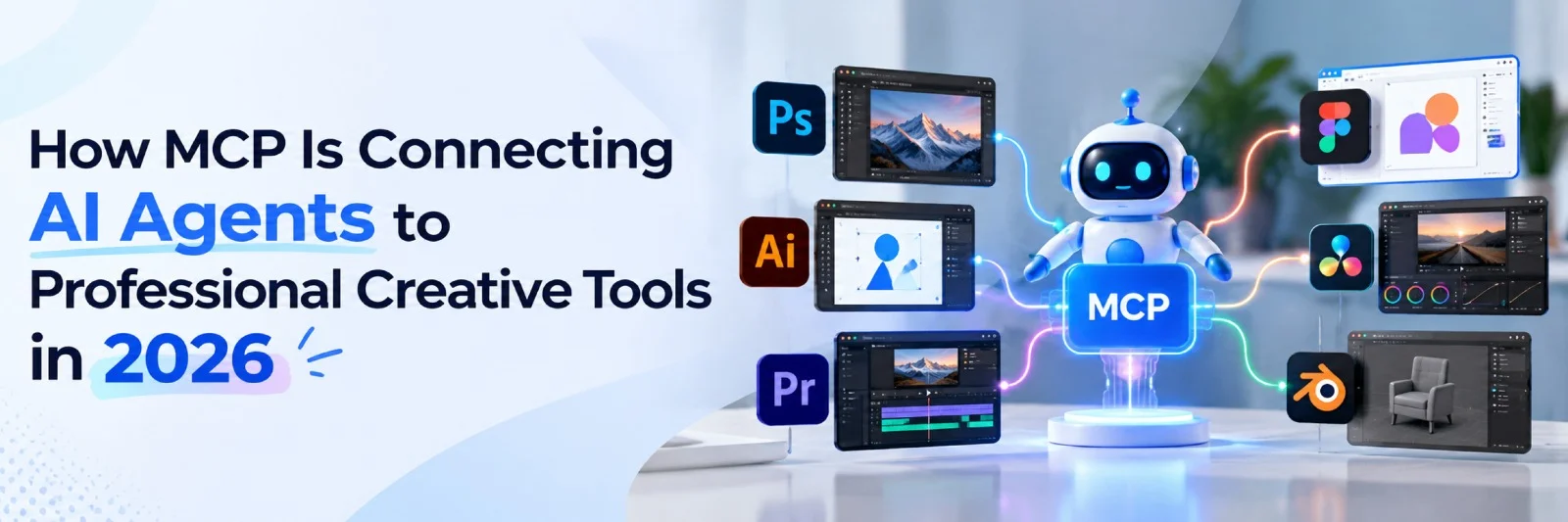
Creative professionals often spend as much time managing software as shaping ideas. Editors organise footage, adjust timelines, balance audio, and repeat small changes before a project feels right. MCP AI agents introduce another way to handle parts of this work: connecting an AI assistant with actions available inside compatible software. Model Context Protocol provides a shared interface through which applications expose tools to AI systems. Instead of only explaining how to make an edit, an agent can use an authorised integration to help perform it, while the professional guides the outcome.
For video teams, this connection becomes more useful when the work happens inside an editable project. Invideo Remote Agents offers a practical example, connecting supported AI assistants to Invideo Editor through an MCP server. Its documented capabilities include timeline editing, colour correction, audio mixing, and media generation. This article explains how MCP creative tools work, what an AI agent workflow can look like, and where human judgement remains essential when turning a brief into a finished video for an audience.
What Is Model Context Protocol, and How Does It Work?
Model Context Protocol, commonly called MCP, standardises how AI applications interact with external tools and information. An MCP server exposes capabilities that a compatible client can discover and use. For creative work, those capabilities might involve editing a project or accessing media. MCP itself does not provide editing features; the connected application determines which actions exist, and the integration determines how an agent can access them within its authorised permissions.
How an MCP Server Connects AI Agents to Software
An MCP server describes available tools and the inputs they require. A connected AI application can discover these tools and request an action when relevant to your instructions. The software executes the request and returns a result. This gives the agent a structured interface for interacting with supported application features.
- Client: The AI application connecting to the server.
- Server: The component exposing supported capabilities.
- Tool: A specific action available through that connection.
What Is a Remote MCP Server?
A remote MCP server runs outside your local computer and is accessed through a network connection. It can expose a hosted service to compatible AI applications. Authentication and available tools depend on the provider. Remote hosting changes where the connection operates; it does not automatically expand the agent’s editing capabilities.
|
Component |
Purpose |
What to Check |
AI Application |
|---|---|---|---|
|
MCP Server |
Exposes supported tools and connects the AI application with external software. |
Available tools, permissions, provider configuration, and authentication. |
Interprets requests and identifies supported actions. |
|
Creative Software |
Performs the requested creative operations. |
Available editing capabilities, supported file formats, and tool compatibility. |
Executes tasks such as image editing, design creation, and content modification. |
|
Creative Professional |
Defines and reviews the final outcome. |
Quality standards, visual consistency, accuracy, and brand requirements. |
Provides creative direction, evaluates results, and approves the final deliverable. |
What MCP Means for Creative Professionals
MCP creative tools can bring AI assistance closer to the place where production happens. Rather than moving between a chat window and separate instructions, professionals can ask a connected agent to use supported software actions. The practical value depends on the task, integration, and quality of the result. A useful starting point is one repetitive, reviewable operation within an existing creative process, followed by careful inspection of the resulting changes.
Moving from Written Suggestions to Software Actions
A conventional assistant might explain how to shorten an opening sequence. A connected agent may be able to perform that change through an exposed editing tool. The distinction is execution: advice becomes a software operation. However, the action must be supported by the integration and remain within the granted permissions.
- Give the agent a specific editing instruction.
- State which elements should remain unchanged.
- Inspect the result before requesting further changes.
Practical Uses of AI Agents for Creative Professionals
AI agents for creative professionals are most useful when instructions are clear and results can be checked. Potential tasks include preparing an initial sequence, applying targeted revisions, or organising supported production steps. Their usefulness varies by application. Test each workflow with a small project before depending on it for delivery.
- Preparing a rough edit from a defined brief.
- Adjusting timing after feedback.
- Applying supported audio or visual changes.
- Helping with repeated production steps.
How Invideo Remote Agents Enable AI Agent Video Editing
Invideo Remote Agents connects supported AI assistants to Invideo Editor through an MCP integration. Its official page describes professional timeline editing, colour correction, audio mixing, and image, video, and audio generation. This makes it a concrete example of a remote video editing agent working inside creative software. These are capabilities documented by invideo. Not every MCP server or creative application necessarily provides them to its users.
Connecting an AI Agent to Invideo Editor
Start with Invideo’s current Remote Agents instructions for your chosen AI application. The connection uses its hosted MCP endpoint and an account authentication process. Setup steps differ between clients, so follow the relevant guide. After connecting, check which tools are available before asking the agent to begin an editing task.
- Open the video Remote Agents
- Select the instructions for your AI application.
- Complete the required connection and authentication.
- Start with a small, clearly defined task.
What Agents Can Do Inside Invideo Editor
Invideo lists timeline editing, colour correction, audio mixing, and media generation among its Remote Agents capabilities. These functions connect conversational instructions with production operations. To evaluate them meaningfully, use your own footage and a specific brief. Review the resulting project rather than assuming that a completed action guarantees creative quality.
|
Documented Capability |
Example Task to Test |
Human Review Focus |
|---|---|---|
|
Timeline Editing |
Shorten an opening sequence |
Pacing and continuity |
|
Colour Correction |
Adjust footage appearance |
Consistency and skin tones |
|
Audio Mixing |
Balance speech and music |
Clarity and transitions |
|
Image Generation |
Create a supporting visual |
Accuracy and brand fit |
|
Video and Audio Generation |
Produce supplementary media |
Suitability and usage rights |
What an Agentic Video Editing Workflow Looks Like
Agentic video editing works best as a sequence of clear instructions, supported actions, and human review. Begin with a defined outcome, then divide the work into manageable changes. Let the agent perform an available operation, inspect the result, and refine the next instruction. This approach makes an AI agent workflow easier to evaluate because each change has a purpose, an observable result, and a clear opportunity for correction before delivery.
Start with a Clear Creative Brief
Tell the agent what the video should achieve, who will watch it, and where it will appear. Include the intended duration, available footage, and brand requirements. Explain which elements must remain unchanged. A precise brief gives the agent useful boundaries and gives you a consistent basis for evaluating its work.
- Audience: Who should the video reach?
- Objective: What should viewers understand or do?
- Format: What duration and aspect ratio are required?
- Assets: Which footage, logos, and audio should be used?
- Boundaries: What must be preserved?
Example brief:
Create a 30-second product introduction using the supplied footage. Keep the original logo unchanged, prioritise clear narration, and use a calm pace. Prepare an initial edit for review before final export.
Review the Edit and Request Specific Changes
Review the project against your brief, paying attention to pacing, message clarity, audio, and visual consistency. Give feedback that identifies a specific change rather than a vague preference. For example, request a shorter opening or quieter background music. Check the revised result before approving the video for its intended audience.
- Replace “make it better” with a measurable instruction.
- Identify the scene or section needing revision.
- Check names, captions, logos, and factual statements.
- Approve the final version after reviewing the complete video.
Benefits and Limitations of MCP Integration
MCP integration can make supported software actions accessible through an AI application, but the connection alone does not prove better results. Creative teams should assess whether a workflow saves effort, preserves quality, and fits their production needs. Compare the time spent instructing and correcting the agent with the time required manually. The strongest use case is a task where the resulting changes remain easy to inspect and revise when necessary.
Where MCP AI Agents Can Help Creative Teams
MCP AI agents may help teams handle repeated edits, translate clear requests into supported actions, and keep revisions moving within a connected workflow. These benefits are possibilities, not guaranteed outcomes. Measure them using representative projects. Record instruction time, correction effort, and output quality before expanding the workflow across your team.
- Time spent preparing and explaining the task.
- Number of corrections required.
- Quality of the final result.
- Ease of inspecting and revising changes.
What to Check Before Using Agentic AI Tools
Before adopting agentic AI tools, confirm the available actions, account requirements, and media handling practices. Check whether your team can inspect changes and recover from unwanted edits. Review licensing and usage rights for generated assets. Establish who approves the final output, especially when projects contain client material or brand commitments.
|
Evaluation area |
Question to ask |
|---|---|
|
Capabilities |
Does the integration support the required task? |
|
Permissions |
What can the connected agent access or change? |
|
Review |
Can the team inspect the resulting edits? |
|
Recovery |
How can unwanted changes be reversed? |
|
Media rights |
Are supplied and generated assets suitable for this use? |
|
Cost |
What subscriptions or usage charges apply? |
Conclusion
MCP connects AI applications with capabilities exposed by compatible software, creating a practical route from instructions to supported actions. Invideo Remote Agents illustrates this approach in video production through its documented editing and generation features. For creative professionals, the next step is straightforward: choose a small task, provide a clear brief, inspect the result, and decide whether the workflow earns a place in your existing production process through useful results.
Frequently Asked Questions
Q1. What Is Model Context Protocol in Simple Terms?
Ans. Model Context Protocol, or MCP, is a standard that helps AI applications connect with external tools and information sources. A compatible client communicates with an MCP server, which exposes particular capabilities. Think of it as a shared connection interface: it enables communication, while the connected tools determine which information the agent can retrieve and which actions it can actually perform. Model Context Protocol
Q2. How Does Invideo Support AI Agent Video Editing?
Ans. Invideo Remote Agents connects compatible AI applications to Invideo Editor through an MCP server. Its official page describes timeline editing, colour correction, audio mixing, and media generation. Users follow instructions for their chosen application and authenticate where required. They can then request supported edits and review the resulting timeline, checking that each change matches their creative brief before approving delivery. invideo.io
Q3. Does Agentic Video Editing Replace Professional Editors?
Ans. Agentic video editing can assist with supported editing tasks, but professionals remain responsible for storytelling, pacing, accuracy, and creative decisions. An agent may execute instructions without understanding every editorial intention. Treat its output as work to review. Assess whether it saves time by comparing completed edits, correction effort, and final quality across projects with similar requirements and clear acceptance criteria.
Q4. What Is the Difference Between an MCP Server and an AI Agent?
Ans. An MCP server exposes tools, resources, or prompts through the protocol. An AI agent operates within an application and may use those capabilities to carry out a task. The server provides the connection to specific functionality; the agent decides how to use available tools within its instructions. Neither role guarantees unrestricted access to every feature of the connected software application. Model Context Protocol
Q5. What Is a Remote MCP Server?
Ans. A remote MCP server runs outside the local client environment and communicates over a supported network transport. It can expose tools and information from a hosted service to compatible AI applications. Authentication and access requirements depend on the implementation. For creative teams, check the service’s documentation to understand supported capabilities, connection requirements, and how account permissions affect the available operations. Model Context Protocol
Q6. Can MCP AI Agents Connect to Every Creative Tool?
Ans. No. A creative tool needs a compatible MCP integration, and the chosen AI application must support that connection. Even when connected, an agent can only use the capabilities the integration exposes. Before planning a workflow, verify the specific actions you need. A connection alone does not establish support for every editing feature, file format, export option, or collaboration requirement involved. Model Context Protocol
Q7. How Should Creative Teams Evaluate MCP Integrations?
Ans. Start with one representative task and define what a successful result should look like. Check supported actions, account access, project visibility, and opportunities for review. Then compare the agent’s output with your existing workflow. Record setup time, editing time, mistakes, and corrections. This gives your team practical evidence for deciding whether the integration is useful for its actual production needs.
Q8. How Can You Improve an AI Agent Video Editing Workflow?
Ans. Give the agent a clear brief covering the audience, intended duration, source footage, tone, and required changes. Break complex work into stages and inspect the timeline after each meaningful step. Specify what must remain unchanged, including quotations, branding, or important scenes. Review pacing, sound, captions, and factual accuracy before export, and use precise feedback to guide the next editing pass.

 +91 774-202-1725
 +1 (945) 3387904
 business@coherentlab.com
 +49 15223341304
 UK
UK